Watch the video below to see how to deposit local currencies, such as USD, GBP, EUR or AUD and cryptocurrencies into the Kinesis platform. You'll also be shown how to send funds using just an email address.
Before depositing, you'll need to verify your identity.
The video below shows an earlier version of the Kinesis platform, and our team is working on updating it soon. The process, however, remains the same.
Deposit cash
Kinesis supports deposits in multiple local currencies from anywhere in the world.
Deposit directly: US Dollar ($), British Pound (£), Euro (€), Australian Dollar (A$), Canadian Dollar (C$), Swiss Franc (CHF) and Singaporean Dollar (S$).
Automatically converted to USD upon deposit at the current prevailing interbank rate: Chinese Yuan Renminbi (¥), Hong Kong Dollar (HK$), Indonesian Rupiah (Rp), Japanese Yen(JP¥), New Zealand Dollar (NZ$), Nigerian Naira (₦), Zambian Kwacha (ZMW) and South African Rand (ZAR).
We also have specific guides for:
Using your deposited funds
Fiat currencies can be held as part of your portfolio, but they can't be traded, sent, or spent by card directly.
To use them, convert your fiat into the corresponding 1:1 fiat-pegged Currency One stablecoin - in just a few clicks, free of charge. You can convert C1 stablecoins back to fiat just as easily at any time.
- See the full conversion guide - here.
Want to skip manual conversion? Set up auto-conversion so all future deposits automatically convert into the corresponding Currency One stablecoin as soon as they arrive in your account - find out more here.
Step 1: Click on the Assets tab from the left-hand navigation panel (or use the deposit function in the top panel).
Step 2: Click open against the fiat (cash) account you want to deposit into (USD in this example).
You'll then see several bank deposit options across different countries. Choose whichever suits you best.
Step 3: The deposit screen displays the Kinesis bank account details you'll need to transfer funds to.
Make a bank transfer from your bank account to the Kinesis bank account show, making sure to include the payment reference from the description field - this is how your deposit is matched to your account.
Make sure you include the Payment Reference contained in the description field on this screen.
Your Kinesis Payment Reference, (starting with KM followed by numbers, eg KM12345678) tells the Kinesis team which account to deposit your funds into. Without it, Kinesis will be unable to credit your deposit.
Note: Deposits take 3-5 working days to clear. Once our operations team confirms receipt, your Kinesis account will be credited and you'll receive an email confirming the transaction.
Deposit BTC and other digital assets
The same process applies to any other digital asset* supported on the Kinesis platform - BTC is used here as an example.
Step 1: Click on Assets in the left-hand navigation panel.
Step 2: Select BTC (or another asset of your choice) tile from the top navigation bar, then choose Receive from the BTC Options drop-down menu.
Step 3: The deposit screen will provide your Kinesis Bitcoin wallet details that you can then deposit BTC to, from your own cryptocurrency wallet.
Once the transaction completes, your deposited BTC will appear in your account and you'll receive a confirmation email. The deposit will also show in your recent transactions.
Note: We do not recommend transferring BTC directly from an exchange. It is advised to send BTC directly from an e-wallet.
Note:* Kinesis only supports the Ethereum (ERC-20) network for USDT deposits, meaning only ERC-20 tokens held on the Ethereum blockchain can be deposited to the Kinesis platform.
For USDC deposits, however, both the ERC-20 and Stellar networks are supported.
Example:
USDT deposited with the Ethereum blockchain
USDT deposited with the Polygon blockchain
USDC deposited with the Stellar blockchain
If you deposit ERC-20 tokens via another blockchain — such as Polygon, Solana, or Binance Chain — those assets will be unavailable to send or trade on the Kinesis platform, and a 5 KAU fee applies to recover them. For full details, see our Asset Recovery Policy.
Move KVT to your Kinesis account
If you are moving KVT into your Kinesis account, ensure you have a sufficient amount of XLM in your Stellar-compatible wallet to cover the transaction fees. KVTs are Stellar tokens and thus require XLM for network transaction costs.
You can purchase XLM on Kinesis Exchange or using the Buy/Sell widget on the Home dashboard, within the Kinesis platform.
Note for ERC-20 KVT holders: Following the KVT Migration to Stellar on 17th February 2025, ERC-20-based KVTs held in external addresses hold no value and cannot be transferred. A small number of users still hold ERC-20 KVTs in unlinked external wallets. If this applies to you, link your external KVT addresses to your Kinesis account to complete the upgrade to Stellar.
Option A: Main Dashboard
Step 1: Open the drop-down waffle menu in the top-right corner of the Home dashboard and select Receive.
Step 2: You will see a pop-up screen that displays your KVT account address in numeric and QR-code formats.
Step 3: From there, copy or scan your KVT account address and enter it into the recipient field of the external wallet where your KVTs are currently held.
Option B: Assets tab
Step 1: Go to Assets tab, using the left-side navigation menu and open the KVT asset tile.
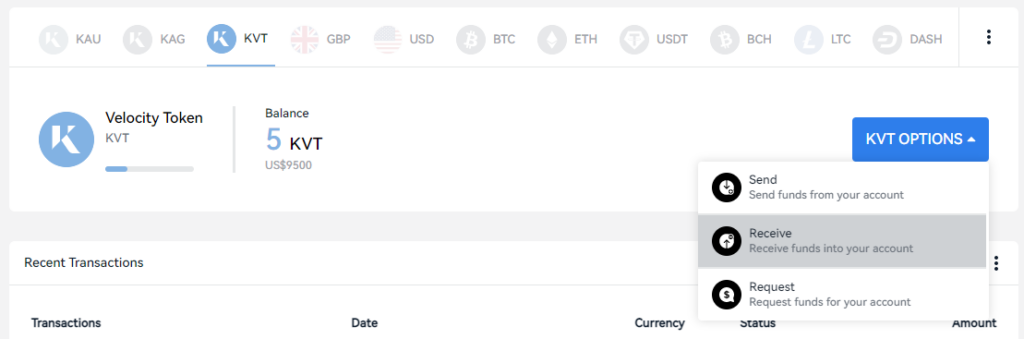
Step 2: Click the KVT Options button and choose Receive.
Step 3: You will see a pop-up screen which displays your KVT account address in numeric and QR-code formats.
Step 4: From there, copy or scan your KVT account address and enter it into the recipient field of the external wallet where your KVTs are currently held.
How to receive KAU & KAG
Step 1: Click on the Assets tab from the left-hand navigation panel.
Step 2: Select the currency tile you wish to deposit funds to (in this example KAU), from the top navigation bar, then choose Receive from the KAU Options drop-down menu.
Step 3: The deposit pop-up displays your Kinesis deposit address. Click the container to copy it, or share it via email.
How to register your bank details:
Step 1: Click on your profile icon in the top-right corner to open the drop-down menu, then choose Settings.
Step 2: From the list of available tabs, select Bank Details.
You can register or update your details at any time by clicking Edit.